
What to Check Before Starting Product Sync
To sync products from Shoptet to Mailship, the product card in your e-shop must have the Product Code and EAN code filled in.
The following data is synchronized:
-
Product Code
-
EAN code
-
Product name
-
Short description (shortened to the first 200 characters)
-
Default category
-
Weight
Be careful about changing data on product cards. The plugin syncs products using the Product Code as the main identifier.
We therefore recommend not changing this code or the EAN code of products that already exist in the e-shop. A product with a changed code will be sent to Mailship as a new product, which will most likely fail if the code is already used on another product card.
How to Start Product Sync
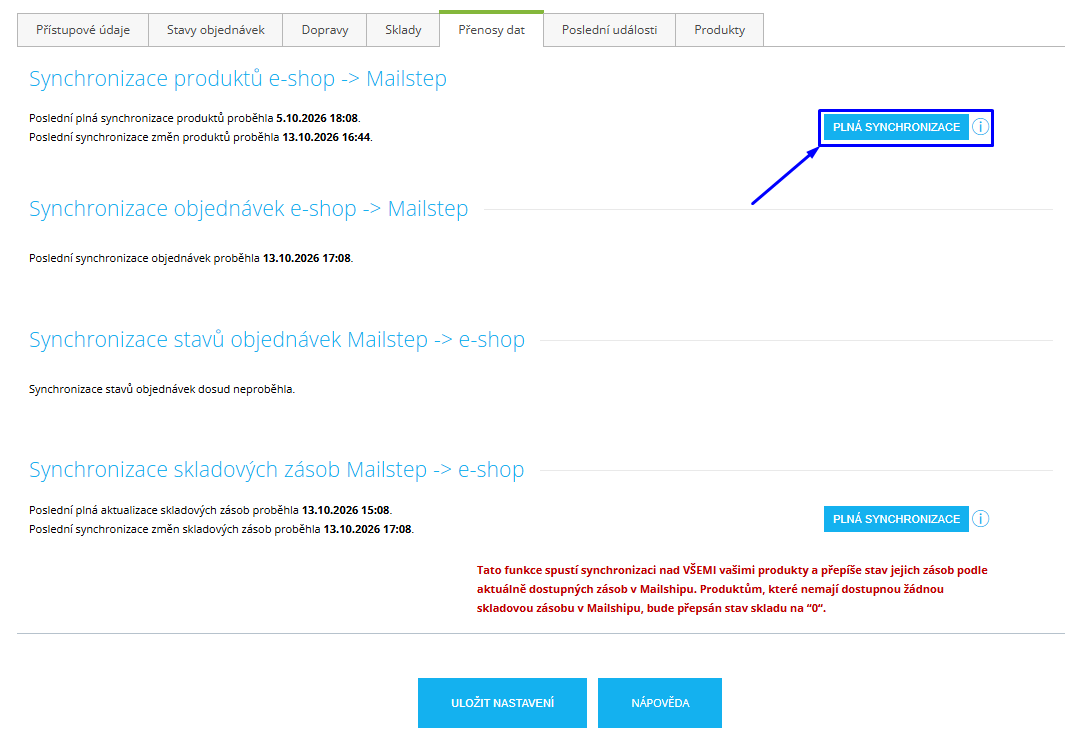
After the plugin is activated, it starts transferring information about your e-shop products to Mailship. If needed, you can also start the sync manually on the Data Transfers (Přenosy dat) tab → Full Synchronization (Plná synchronizace).
Please do not click the “Full Synchronization (Plná synchronizace)” button repeatedly – the action is running even if you do not see any status panel.
Where Can I Check Whether Any Products Failed to Sync?
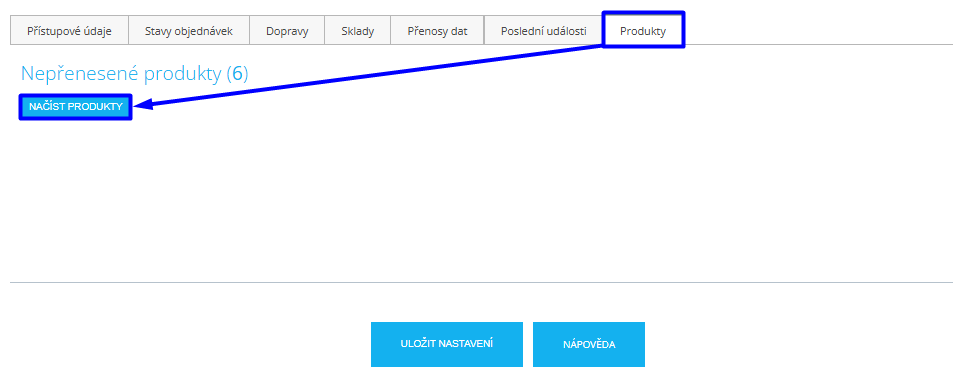
You can check unsynchronized products on the Products (Produkty) tab, see also Shoptet Plugin Status Information.
How to Work with Product Sets (Shoptet + Mailship)
Product sets from Shoptet are not automatically created or synchronized as sets in Mailship. If you want to use a product set in Mailship, you need to create it manually in both systems.
Always create the set in Mailship first, and only then in Shoptet.
If a product with the same SKU is synced from Shoptet first, Mailship automatically creates it as a regular physical product. Since the SKU must be unique in Mailship, it is then no longer possible to create a set with the same SKU. In that case, manual intervention and correction are required.
To be able to mark a product as a set in Shoptet, the e-shop must have the paid Product Sets (Sady produktů) plugin active. Shoptet calculates the stock, availability and visibility of the set itself based on the status of its items – independently of Mailship.
How to Create a Set
1. Create the Set in Mailship
In Mailship, go to Products → Create → Set. Fill in:
-
Internal SKU – use the SKU that the main set product will have in Shoptet.
-
Primary EAN – use the EAN that the main set product will have in Shoptet.
-
Eshops – select the e-shop in which the set should be available.
-
Set items – add all products the set consists of and set the quantity for each of them.
You can find the detailed procedure in the article Creating a Product → Creating a Set.
2. Create the Main Set Product in Shoptet
In Shoptet, create the main set product without variants.
Use the same SKU (Product Code) and EAN as for the set created in Mailship.
Then, in the Shoptet product:
-
In the Additional Information (Doplňující informace) section, set Item Type (Druh položky) → Product Set (Sada produktů).
-
On the Related (Související) tab, in the Set Items (Položky sady) section, add the same products and the same quantities as in Mailship.
3. Verify the Sync
After the sync, check that the product set in Mailship has been correctly paired with the product in Shoptet. Pairing is based on SKU and EAN.